
Start with whatever you have
Type it into the search box: a part number (ours, or the number on the seal you are replacing), a dimension like 0.350, or plain words — bulb seal for a slide-out works. Results appear as you type. If all you have is the old seal in your hand, measure the opening it grips and start with that number.
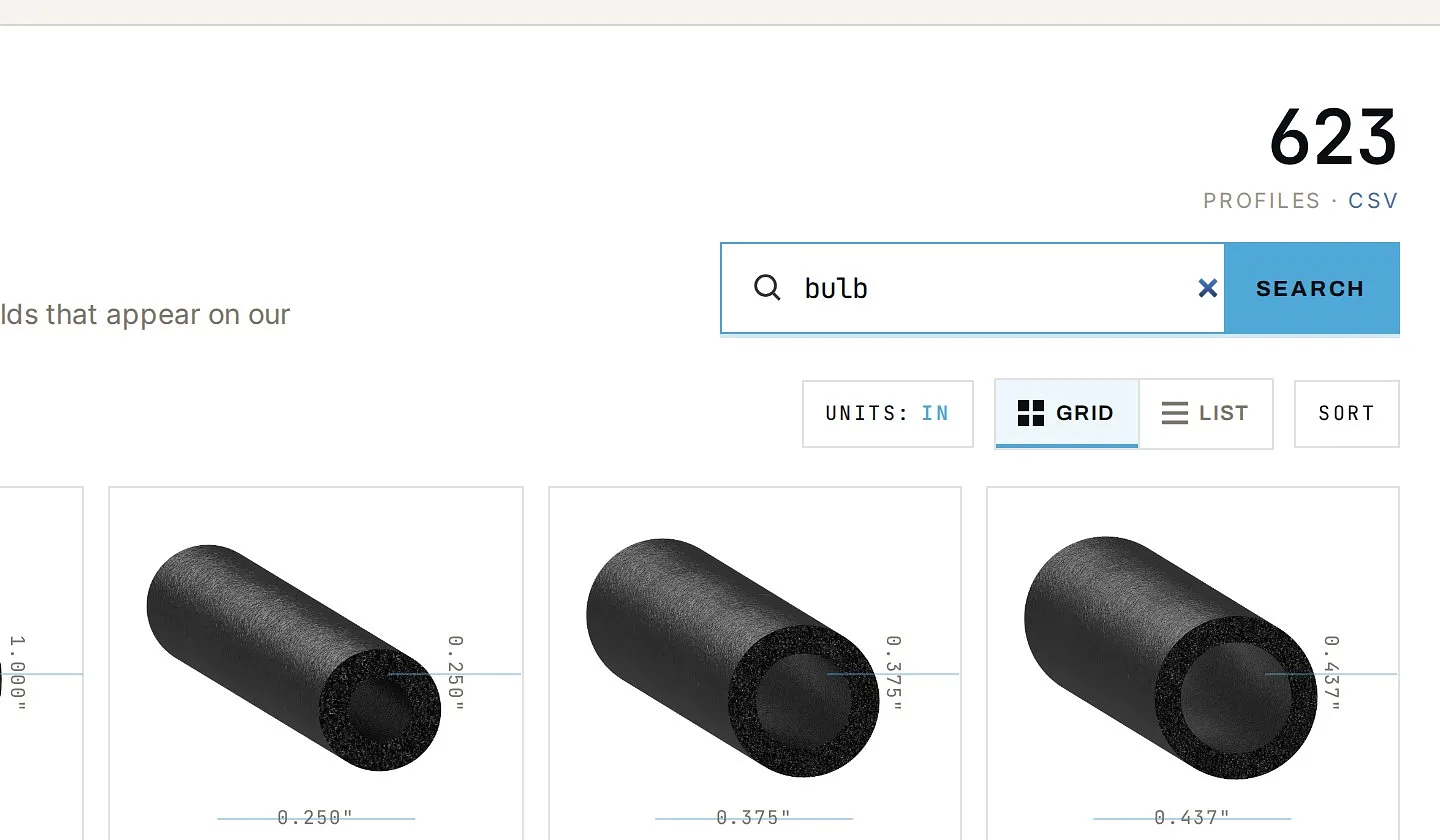
Narrow it down with the filters
The left panel filters the catalog by the same fields that appear on our drawings: style, shape, material, color, mount, texture — tick as many as apply. The sliders cut by width, height, flange and flap length; drag the handles and the results update when you let go. The count beside every filter tells you how many profiles you would get before you commit.
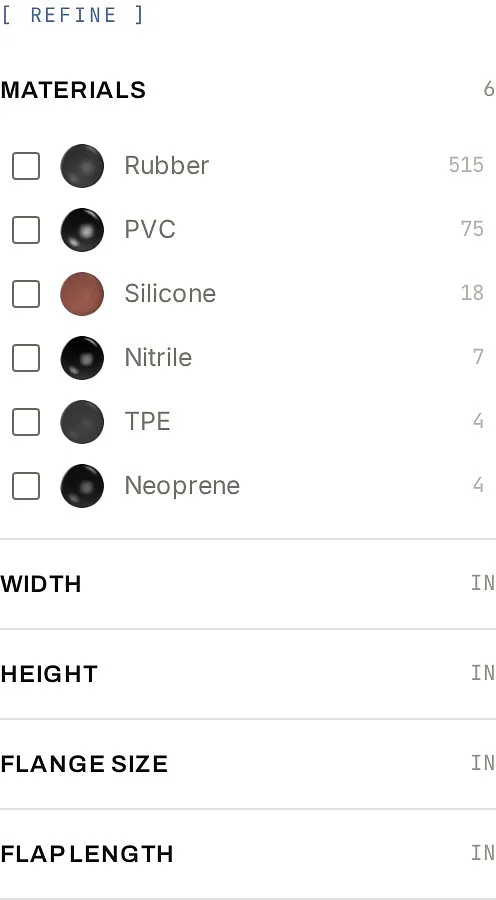
Read the results
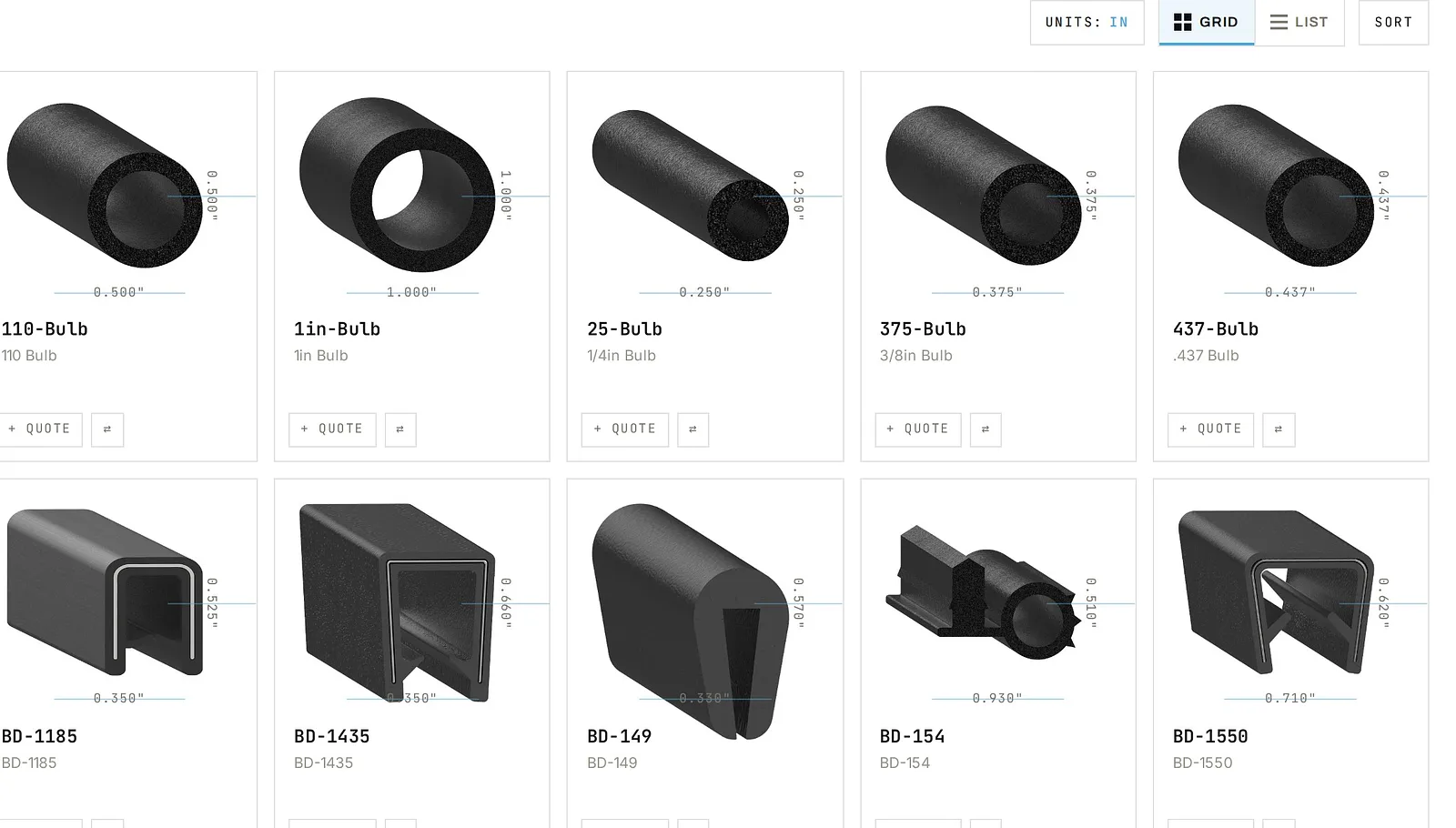
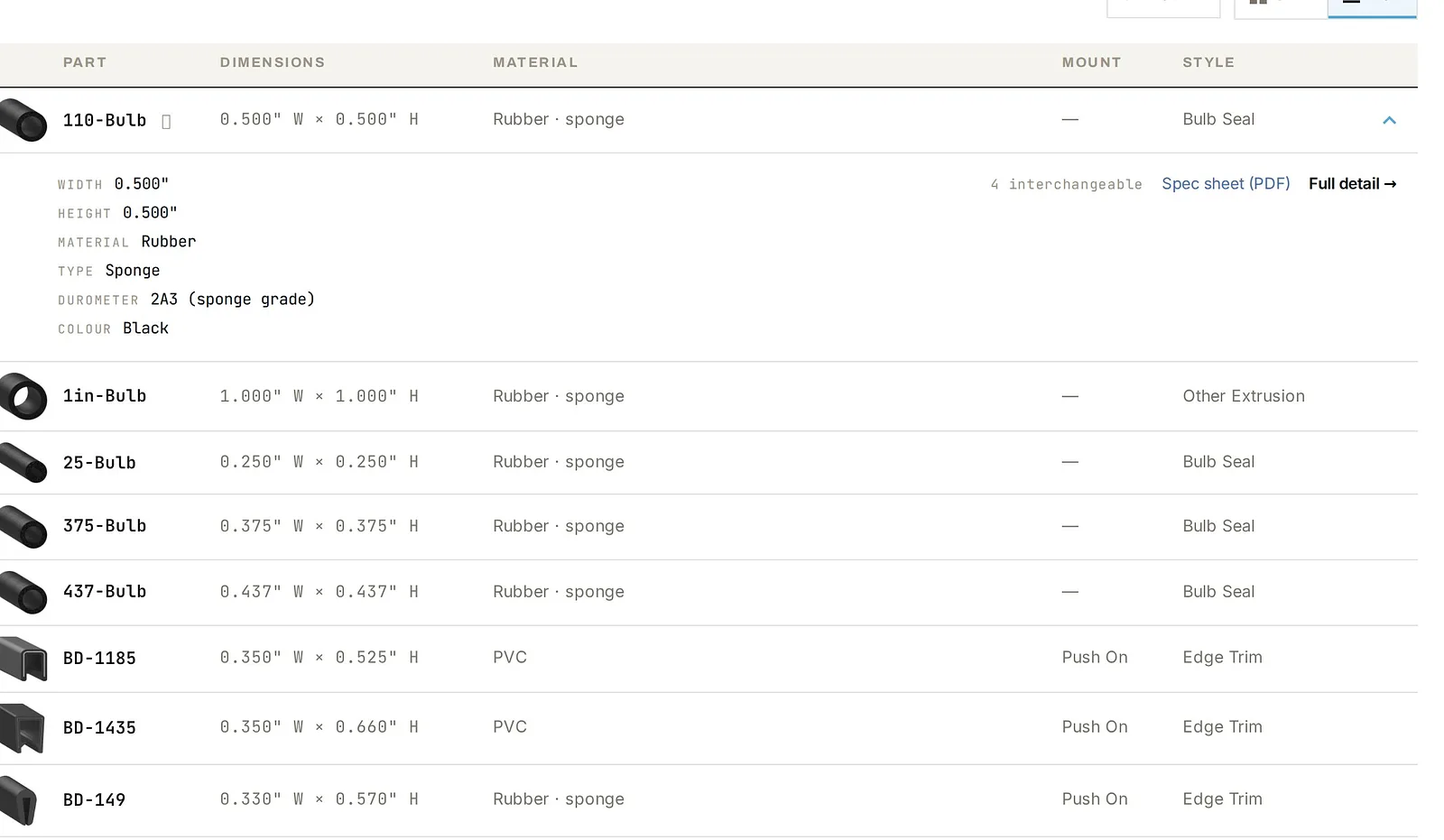
Each card is a real part: its own drawing with the width and height marked on it, and its part number underneath. UNITS switches every dimension between inches and millimetres. LIST swaps the cards for a table you can sort by any column. + QUOTE and the ⇄ mark are the two collectors — more on those below.
Open the part
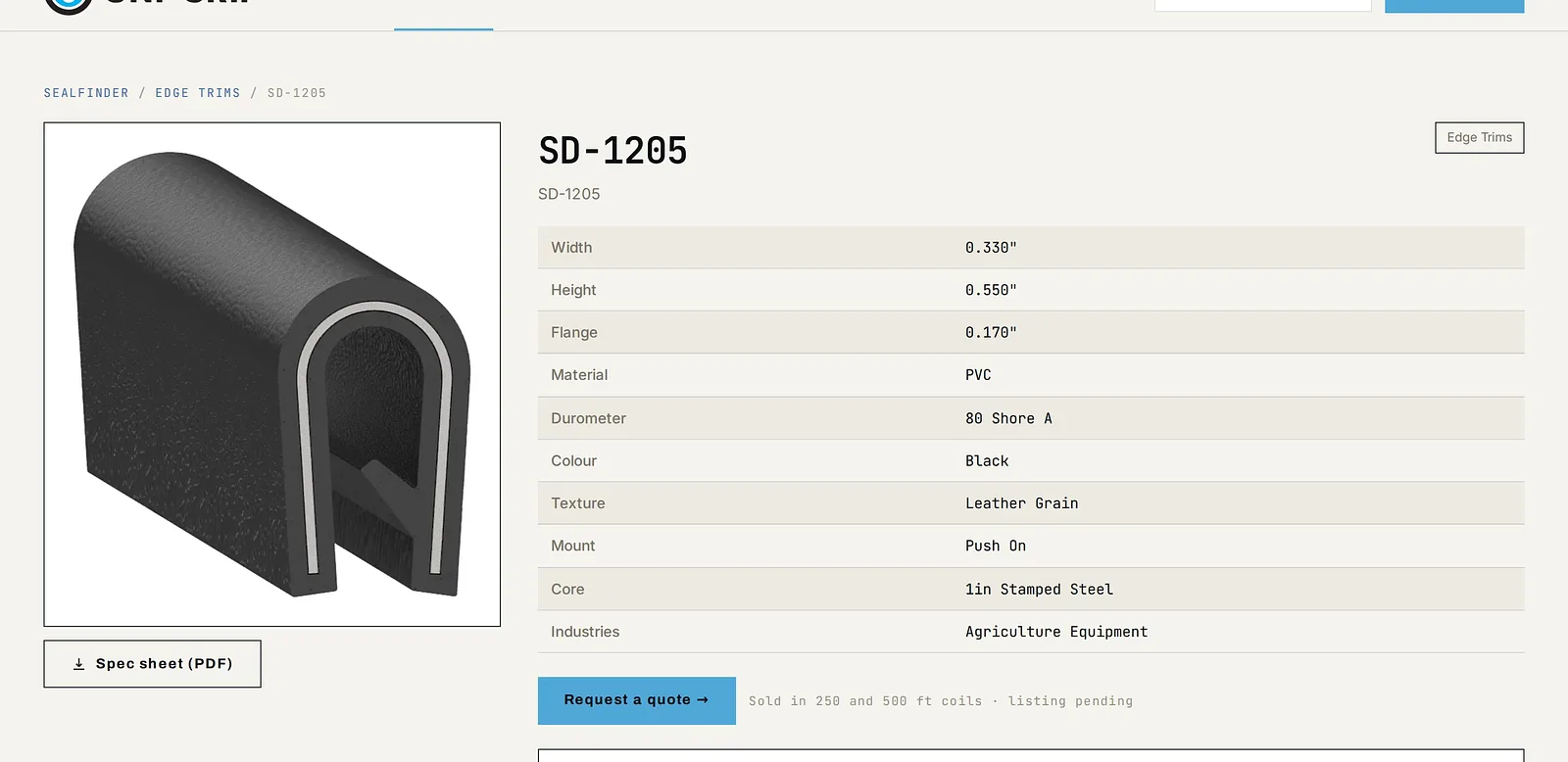
A part's page carries everything we know: the full specification, the dimensioned drawing, and the spec sheet as a PDF one click away. If the part interchanges with other Uni-Grip profiles, they are listed right there.
The table, for comparing columns
LIST turns the cards into a sortable table — click any column head to order by it, click again to reverse. The little chevron on a row expands the part's full specification inline, without leaving the page. CSV (top right) downloads everything your current filters match, in ranked order, for your own spreadsheet.
Hold candidates side by side
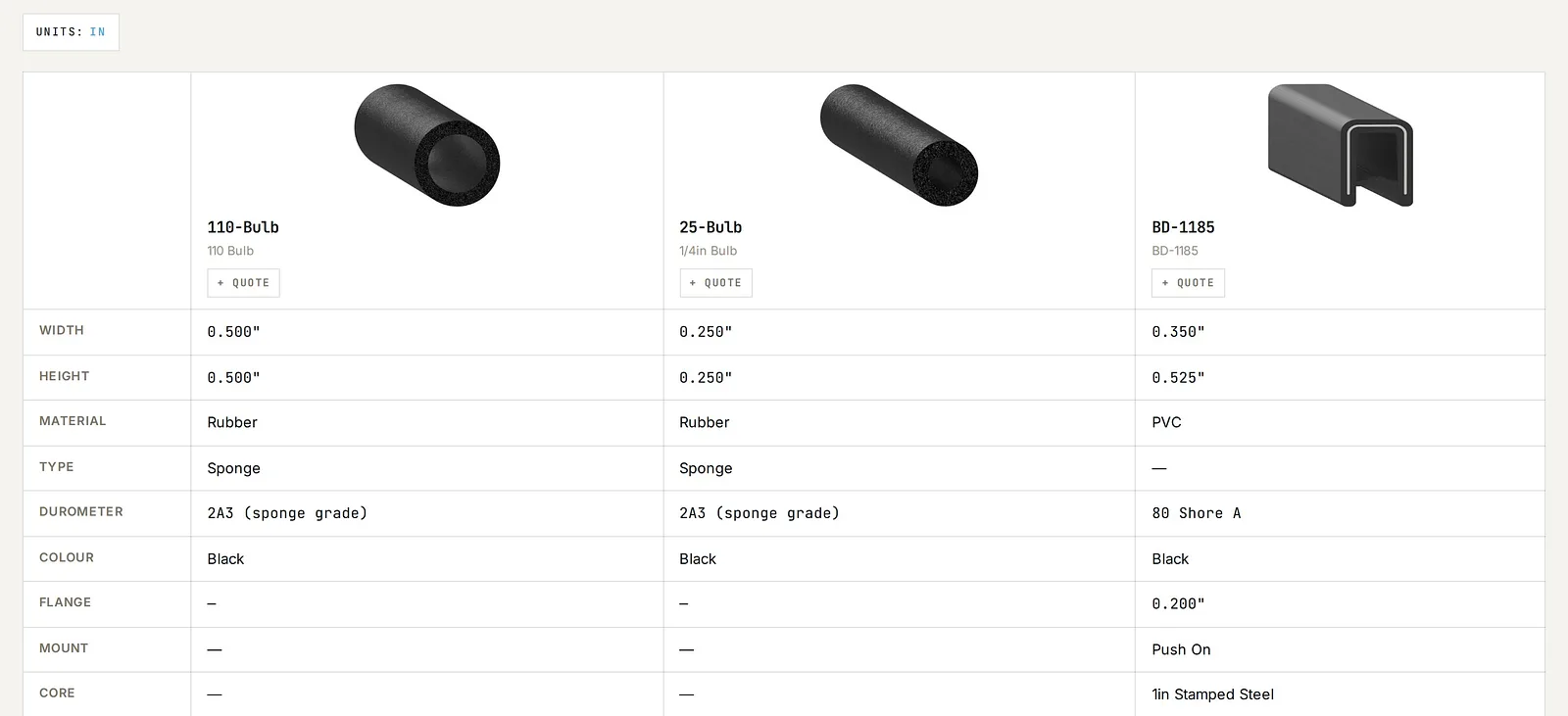
Press the ⇄ mark on up to three parts and a bar appears at the bottom left. Side by side lays their drawings and every specification field out in one aligned table — a dash means a part simply does not carry that field. Each column has its own + QUOTE, and Quote all sends the whole shortlist to the enquiry form at once.
Cross-references and competitor numbers
A part's page lists the Uni-Grip profiles it interchanges with, so an old part number still gets you to the right seal. And if what you have is a competitor's catalog number, type it into the search exactly as printed — the Sealfinder answers with our closest equivalents, ranked, with the dimensions side by side so you can verify the match yourself.
Collect parts, send one enquiry
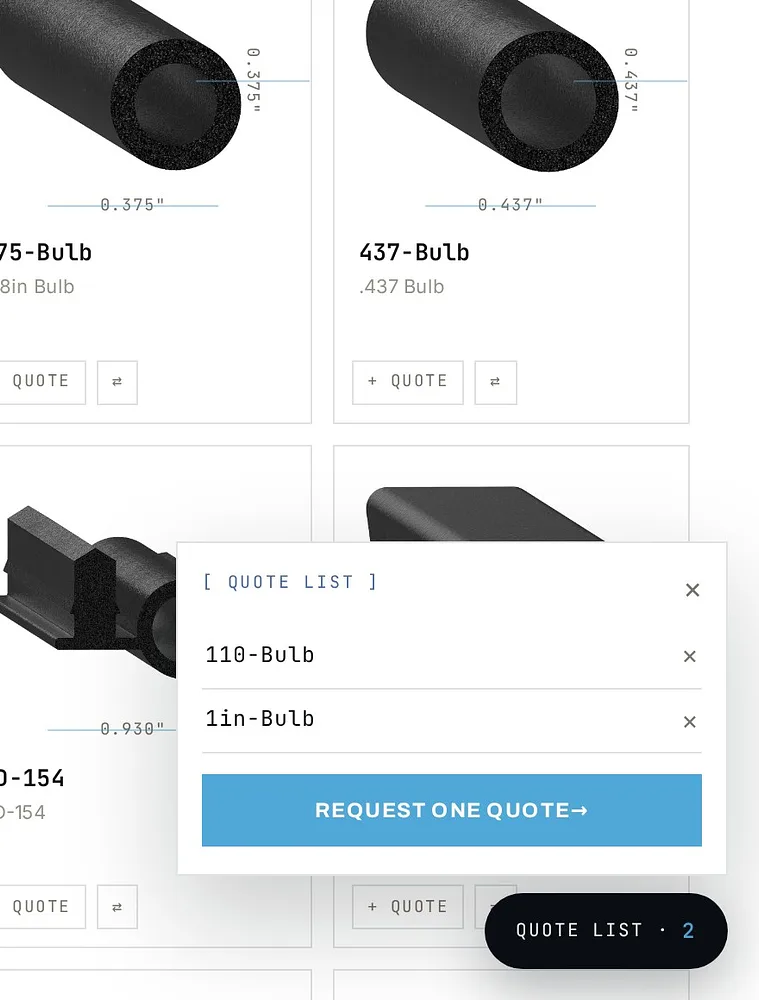
Press + QUOTE on any part and it joins your quote list — the black pill at the bottom right. Collect as many as you like, from anywhere in the catalog, then press Request one quote: the enquiry form arrives with your part numbers already filled in. The ⇄ mark works the same way for comparing — pick up to three and read them side by side.
On a phone
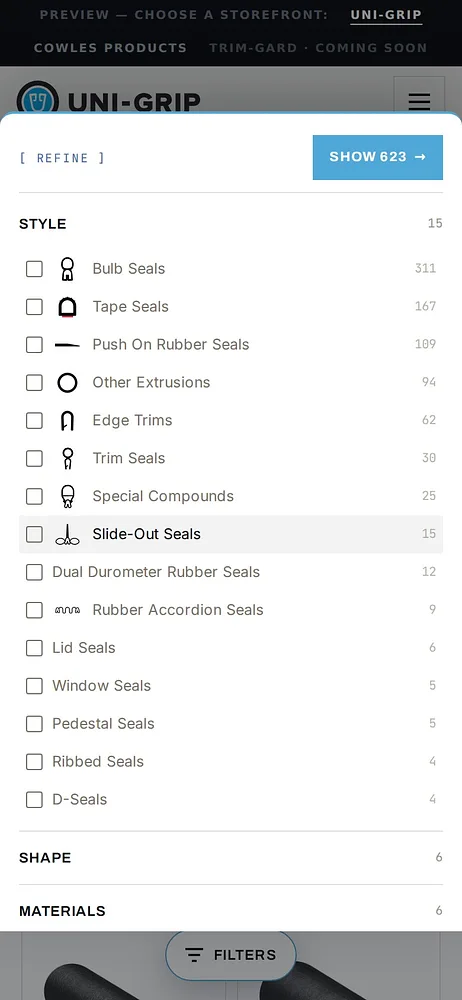
The same finder, one thumb: the Filters pill opens the panel as a sheet from the bottom of the screen, and Show results takes you back with the live count. Everything else — the quote list, compare, units — works exactly the same.
Stuck? That is what we are for.
No search is a dead end: when nothing matches, the Sealfinder shows the nearest profiles by dimension and a straight line to a person. If the seal in your hand defeats the filters, photograph it, measure what you can, and send it through the quote form — a person who knows answers within one business day.